Your First Game
Welcome to Gameatude! This guide walks you through creating your first game, choosing its splash artwork, and getting your new project ready for development.
Creating a game only takes a few steps. You do not need to prepare any files before getting started.
1. Open Your Profile

Start by opening your Profile page in Gameatude.
Your profile contains the Your Dev'ing section, which is where you can view and manage the games and studios associated with your account.
In Your Dev'ing, you can see:
- Your total number of games
- Games currently in development
- Released games
- Your studios
- Your current subscription and storage limits
Your existing games are displayed in the Your Games area near the bottom of the Your Dev'ing section.
Tip: Your profile is the main place to access Your Dev'ing and manage the game projects connected to your account.
2. Create a New Game

In the upper-right corner of the Your Dev'ing section, click the + button beside the game-controller icon.
The Create Game window will open.
This window lets you configure the basic information for your new game before the project is created.
3. Enter Your Game Title
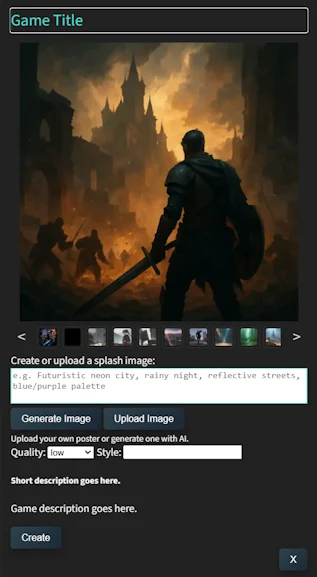
At the top of the Create Game window, enter the name of your game in the Game Title field.
Choose a title that makes the project easy to identify while you are developing it. You can use a temporary working title if the final name has not been decided yet.
Example
Echoes of the Forgotten Realm
4. Choose a Splash Image
Every game can have a splash image. This artwork represents your game in areas such as your game library.
You have three ways to select the artwork:
Choose an Existing Image
Use the thumbnail strip underneath the large preview image to browse available artwork.
Click a thumbnail to preview it. Use the < and > controls to browse additional images.
Generate an Image with AI
You can also describe the image you want Gameatude to create.
Enter a description in the splash-image prompt field.
Example prompt
Futuristic neon city at night, reflective streets, hovering vehicles, cinematic blue and purple lighting.
Select the desired Quality and, when appropriate, enter a Style. Then click Generate Image.
When generation finishes, review the artwork before continuing.
Upload Your Own Image
If you already have artwork for your game, click Upload Image and choose the image you want to use.
Artwork tip: Choose an image with a strong central subject and good contrast. Your splash image may be displayed as a relatively small game card, so simple compositions usually remain easier to recognize.
5. Add Your Game Description
Add a short description that quickly explains what your game is about.
Keep the short description concise. Think of it as the sentence someone should read when they first discover the game.
Example short description
Explore a ruined kingdom and uncover the secret behind its vanished civilization.
You can then provide a more detailed game description.
A useful description might explain:
- What type of game you are building
- What the player will do
- The setting or theme
- The main objective
- Any important gameplay ideas
Example game description
Echoes of the Forgotten Realm is a third-person adventure set in the remains of an ancient kingdom. Players explore abandoned cities, discover hidden locations, solve environmental challenges, and uncover the events that caused the kingdom to disappear.
6. Create the Game
Review the information you entered.
Make sure you are happy with:
- Your game title
- Your selected splash image
- Your short description
- Your full game description
When everything looks correct, click Create.
Your game has now been created.
It will appear with your other projects in the Your Games section of Your Dev'ing.
7. Find Your Game
Return to Your Dev'ing whenever you want to access your projects.
Games are displayed as image cards in the Your Games area. Locate the splash image for the game you just created and select it to continue working with that project.
You're Ready to Start Building
That's it! You now have your first Gameatude game project.
The initial game creation process is primarily about establishing the project's identity. Your title, artwork, and description make the project easy to recognize while the actual game develops.
From here, you can begin turning the project into a playable game using the Gameatude development environment.
- Quick recapOpen Your Dev'ing.
- Click + to create a game.
- Enter your game title.
- Choose, generate, or upload a splash image.
- Add your game descriptions.
- Click Create.
- Find your new game under Your Games.